Jason Bock
| Home | Biography | Speaking | Articles | Books | Music |
Inline Automapping in C#
Synposis: A common technique in .NET code is to map the state between two objects. Typically, this happens at runtime with packages that automatically generate mapping strategies. However, what if you could automatically generate that code before you even compile it? In this article, I’ll look at what you can do with the Compiler API to generate mapping code and what limitations this technique has.
Source, Meet Destination
Automatic object mapping. You’ve probably seen this in projects you’re working on, or maybe you’ve heard of Nuget libraries that handle this for you. Mapping is a simple operation to perform: you take the state of one object and set it to the state of another. This is done by finding all the public properties from the source object that are readable and matches them to public properties on the destination object that are writable, have a compatible type, and have the same name as the property from the source. Here’s an example. Let’s define two classes, Source and Destination:
public class Source
{
  public int A { get; set; }
  public Guid B { get; set; }
}
public class Destination
{
  public int A { get; set; }
  public Guid B { get; set; }
}
To map an instance of Source to Destination, you write this code:
var source = new Source { A = 10, B = Guid.NewGuid() };
var destination = new Destination();
destination.A = source.A;
destination.B = source.B;
Easy, right? For a simple example like this, it is. However, real-world coding scenarios are never as easy as this. Consider these cases:
- What if your source has properties that can’t be mapped to a destination property because there’s no matching property by name, or the types are incompatible?
- What if you have a match between the source and the destination but you don’t want to map the property.
Now, if you were always writing your mapping code by hand, you can handle these cases as needed. However, to be frank, writing mapping code is boring and tedious. Boring and tedious code is also prone to errors – it would be easy for a developer to forget a property to map, especially if the objects are large with numerous properties. This is why you’ll find packages like AutoMapper on NuGet. It simplifies the mapping process down to just a couple of lines of code:
Mapper.Initialize(config => config.CreateMap<Source, Destination>());
var source = new Source { A = 10, B = Guid.NewGuid() };
var destination = Mapper.Map<Destination>(source);
If you wanted to ignore a specific property, you specify that during configuration:
Mapper.Initialize(config => config.CreateMap<Source, Destination>()
  .ForMember(dest => dest.B, option => option.Ignore()));
There’s a lot more you can do with AutoMapper, and I encourage you to read the documentation on what is possible with this package.
Note: I highly encourage you to read this article on object mapping, as it covers bad practices that you should avoid and provides guidance on when to use packages to handle mapping automatically.
Issues with Automatic Mapping
While AutoMapper is a great package that can simplify mapping concerns, it also has some drawbacks. One of the main issues is performance. An automatic mapper has to use Reflection to find all the properties on the source and destination and determine what properties should map. Some of this work, once discovered, can be compiled via Reflection.Emit or LINQ Expressions and subsequentially cached, delivering better performance. However, this discovery process is still a one-time hit that you can’t avoid.
There are other mapping issues that have to be addressed, and to the author of AutoMapper’s credit, a lot of work has been done to reduce the performance penalty of run-time mapping. Furthermore, in most applications, an automatic mapper like AutoMapper will not be the source of major performance issues. However, there’s no beating compile-time mapping. Even a library like TinyMapper, which claims that its mapping performance is two orders of magnitude faster than AutoMapper, can’t beat handwritten mapping code.
Personally, I’ve found that automatic mappers can sometimes be more trouble than they’re worth, especially as the object graph becomes complex. More often than not, I end up manually writing the mapping code myself. That’s still a tedious process, and I’d love it if a tool would generate that mapping code for me. That’s what I’m going to demonstrate in this article – using the Compiler API to generate mapping code directly in my source code. It won’t be a full-fledged mapper; rather, I’m focusing on the process of finding these mapping points and transforming source code to including mapping code.
Creating Mapping Code at Coding Time
So, how do you do this? The approach I took was to create an analyzer that will look for a specific method invocation, and will provide a code fix to remove that method invocation and replace it with mapping code. This means that if you want to follow the code, you’ll need to know how the Compiler API works. This isn’t an easy endeavor to do, but there’s a lot of information online to get you up to speed if you’ve never used this API before.
To start, here’s the method that the analyzer will look for:
using System;

namespace InlineMapping
{
  public static class InlineMapper
  {
    public static void Map<TSource, TDestination>(
      TSource source, TDestination destination)
    {
      throw new NotSupportedException();
    }
  }
}
Invoking this method will cause an exception. The intent of this method is to be a “marker” in code. That is, the analyzer will look for this method and flag any usage as an error, forcing the developer to address it. The following figure shows what this looks like in Visual Studio:
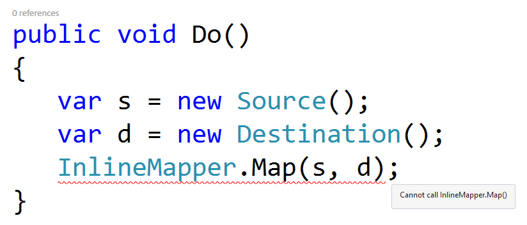
To get the method invocation to show up as an error, I wrote a custom analyzer called UsingInlineMapperAnalyzer. This analyzer looks for any method invocation, and if that method invocation is the Map() method on InlineMapper, it reports it as a problem. Here’s the analyzer code:
[DiagnosticAnalyzer(LanguageNames.CSharp)]
public sealed class UsingInlineMapperAnalyzer
  : DiagnosticAnalyzer
{
  private static DiagnosticDescriptor descriptor =
    new DiagnosticDescriptor(
      UsingInlineMapperConstants.Id,
      UsingInlineMapperConstants.Title,
      UsingInlineMapperConstants.Message,
      UsingInlineMapperConstants.Category,
      DiagnosticSeverity.Error, true);

  public override ImmutableArray<DiagnosticDescriptor> SupportedDiagnostics
  {
    get
    {
      return ImmutableArray.Create(UsingInlineMapperAnalyzer.descriptor);
    }
  }

  public override void Initialize(AnalysisContext context)
  {
    context.RegisterSyntaxNodeAction(
      UsingInlineMapperAnalyzer.AnalyzeInvocationExpression,
    SyntaxKind.InvocationExpression);
  }

  private static void AnalyzeInvocationExpression(
    SyntaxNodeAnalysisContext context)
  {
    var invocationNode = (InvocationExpressionSyntax)context.Node;
    var invocationMethod = context.SemanticModel
      .GetSymbolInfo(invocationNode).Symbol as IMethodSymbol;

    if (invocationMethod != null &&
      invocationMethod.Name == nameof(InlineMapper.Map) &&
      invocationMethod.ContainingType.Name == nameof(InlineMapper) &&
      typeof(InlineMapper).AssemblyQualifiedName.Contains(
        invocationMethod.ContainingType.ContainingAssembly.Name))
    {
      context.ReportDiagnostic(Diagnostic.Create(
        UsingInlineMapperAnalyzer.descriptor,
        invocationNode.GetLocation()));
    }
  }
}
In Initialize(), I tell the context to call AnalyzeInvocationExpression() whenever an InvocationExpressionSyntax node is found within a C# syntax tree. Then, I look at that node, and determine if it’s the method I’m looking for. Note that I’m using a SemanticModel to get a IMethodSymbol reference for the InvocationExpressionSyntax node I was given. Symbols from the semantic model are a little easier to work with than the syntax nodes, tokens and trivia that you get from the syntax tree. Getting the method name and its containing type and assembly is straightforward with IMethodSymbol.
That’s one part of the solution. The other part is to replace the method invocation with object mapping code. This is done with a code fix class called UsingInlineMapperCodeFix, which inherits from CodeFixProvider. This takes a bit more code than the analyzer, and I’ll only focus on the RegisterCodeFixesAsync() method I overrode to create the new code:
public override async Task RegisterCodeFixesAsync(
  CodeFixContext context)
{
  var root = await context.Document.GetSyntaxRootAsync(
    context.CancellationToken).ConfigureAwait(false);
  var model = await context.Document.GetSemanticModelAsync(
    context.CancellationToken).ConfigureAwait(false);

  context.CancellationToken.ThrowIfCancellationRequested();

  var diagnostic = context.Diagnostics.First();
  var invocationNode = root.FindNode(
    diagnostic.Location.SourceSpan) as InvocationExpressionSyntax;
  var invocationMethod = model.GetSymbolInfo(
    invocationNode).Symbol as IMethodSymbol;

  var invocationParent = invocationNode.Parent;
  var sourceArgument = invocationNode.ArgumentList.Arguments[0];
  var destinationArgument = invocationNode.ArgumentList.Arguments[1];

  var sourceType = invocationMethod.TypeArguments[0];
  var destinationType = invocationMethod.TypeArguments[1];
  var destinationProperties = destinationType.GetMembers()
    .OfType<IPropertySymbol>();
  var expressions = new List<SyntaxNode>();
  var comments = new List<SyntaxTrivia>();

  foreach (var sourceProperty in
    sourceType.GetMembers().OfType<IPropertySymbol>().Where(_ => _.GetMethod != null)
  {
    context.CancellationToken.ThrowIfCancellationRequested();

    var destinationProperty = destinationProperties.FirstOrDefault(
	  _ => _.Name == sourceProperty.Name && _.SetMethod != null);

    if (destinationProperty != null)
    {
      if (destinationProperty.Type.IsAssignableFrom(sourceProperty.Type))
      {
        var expression = $"{destinationArgument.Expression}
		  .{destinationProperty.Name} =
          {sourceArgument.Expression}
          .{sourceProperty.Name};{Environment.NewLine}";
        expressions.Add(SyntaxFactory.ParseStatement(expression)
		  .WithAdditionalAnnotations(Formatter.Annotation));
      }
      else
      {
        comments.Add(SyntaxFactory.Comment(
          $"// TODO - The type for the source property
          {sourceProperty.Name}, {sourceProperty.Type.Name},
          cannot be assigned to the destination property of type
          {destinationProperty.Type.Name}{Environment.NewLine}")
          .WithAdditionalAnnotations(Formatter.Annotation));
      }
    }
  }

  var newRoot = UsingInlineMapperCodeFix.CreateNewRoot(
    root, invocationParent, comments, expressions);

  if(newRoot != root)
  {
    context.RegisterCodeFix(
      CodeAction.Create(
        UsingInlineMapperConstants.CodeFixTitle,
        _ => Task.FromResult(context.Document.WithSyntaxRoot(newRoot)),
        UsingInlineMapperConstants.CodeFixTitle), diagnostic);
  }
}
That’s a lot of code. Let’s cover each step in detail. The first 10 to 20 lines of code get the root and model for the document that contains the InvocationExpressionSyntax node found in the analyzer. Once we grab the InvocationExpressionSyntax object, we get the method and type arguments for the method. This enables us to figure out the names of the properties and their types. For example, if the destination object has a property defined like this:
public int Id { get; set; }
We’ll know that its name is “Id” and its type is “int”.
Next, we find all the properties on the source object that are readable. We try to find a property on the destination object that has the same name, is writeable, and has a compatible type. If we find one, we generate a StatementSyntax object that would look something like this:
destination.Id = source.Id;
If the type of the source property isn’t assignable to the destination property’s type, we generate a SyntaxTrivia node that contains a TODO comment. This will be a tip to the developer that something isn’t quite right between the source and destination objects.
The last step is to create a new tree if we have either expressions or comments. This is done in CreateNewRoot():
private static SyntaxNode CreateNewRoot(SyntaxNode root,
  SyntaxNode invocationParent, List<SyntaxTrivia> comments,
  List<SyntaxNode> expressions)
{
  if (comments.Count > 0)
  {
    if (expressions.Count > 0)
    {
      comments.Insert(0, SyntaxFactory.EndOfLine(Environment.NewLine));
      expressions[expressions.Count - 1] =
        expressions[expressions.Count - 1].WithTrailingTrivia(
          SyntaxFactory.TriviaList(comments));
      return root.ReplaceNode(invocationParent, expressions);
    }
    else
    {
      comments.AddRange(invocationParent.GetTrailingTrivia().ToList());
      comments.Insert(0, SyntaxFactory.EndOfLine(Environment.NewLine));
      var newParent = invocationParent.WithTrailingTrivia(
        SyntaxFactory.TriviaList(comments));

      return root.ReplaceNode(invocationParent, newParent);
    }
  }
  else if (expressions.Count > 0)
  {
    return root.ReplaceNode(invocationParent, expressions);
  }
  else
  {
    return root;
  }
}
If all I have is new expressions, it’s pretty easy – I use ReplaceNode() to remove the original invocation with my new property mapping expressions. Adding comments throws a wrinkle into the equation.
Comments are SyntaxTrivia objects, and they are added as either leading or trailing trivia to a node in the tree. Therefore, I have to add the comments to different nodes if I actually have expressions or not.
So, let’s see this in action. I open a solution that has the analyzer and code fix enabled with two classes defined as my source and destination:
public class BaseClass { }

public class SubClass : BaseClass { }

public class Source
{
  public int A { get; set; }
  public int B { get; set; }
  public SubClass F { get; set; }
  public BaseClass G { get; set; }
}

public class Destination
{
  public int A { get; set; }
  public int B { get; set; }
  public BaseClass F { get; set; }
  public SubClass G { get; set; }
}
This is what I see with the code fix:
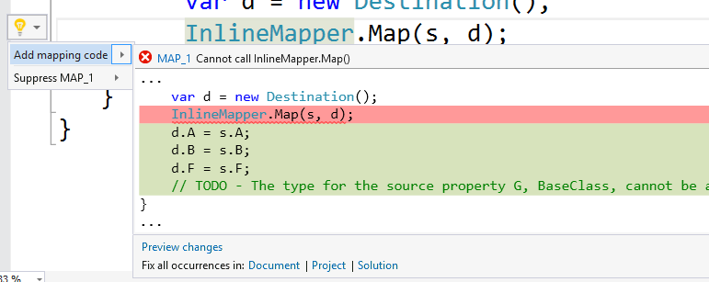
Keep in mind that I can apply the code fix for any instance in my solution where my analyzer has found code where I’m calling InlineMapper.Map(). If I accept the code fix, my code changes like this:
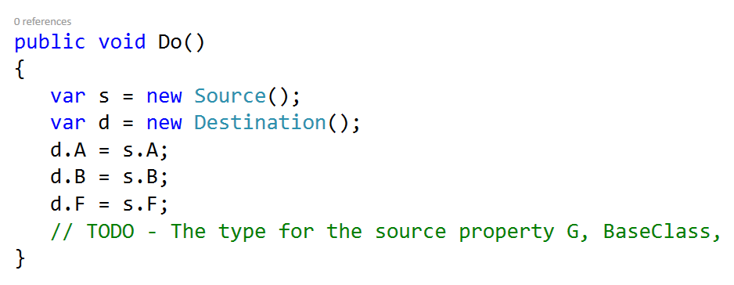
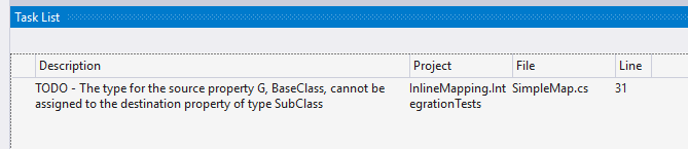
Notice that I now have a comment that I can track in Visual Studio via the Task List:
Now I have my mapping code inline and have the best possible performance for object mapping. Perfect!
Issues with Compile-Time Mapping Code
Now, my example doesn’t have all the features you’d want for object mapping. For example, I don’t handle child objects at all. My intent with this example wasn’t to provide a fully functional inline object mapper. If you want to extend this idea for any features you want, feel free to take this code and adjust it for you needs. However, keep in mind that it has one problematic issue. Generating mapping code happens once. Run-time mappers like AutoMapper have the advantage that they’ll always work with the latest versions of the source and destination objects. My approach will completely ignore new versions of the source and destination types. That is, if they both have three new properties, they are not added to the code. I’d have to remember to delete the mapping code, make a call to InlineMapper.Map() and run the code fix again.
What we really want here is a mechanism in C# that allows us to add code at compile time, every time compilation occurs. Some languages have macros that provide this capability. Currently C# doesn’t have that, but there is a proposal called source generators or code generator extensions. The name is somewhat up in the air right now – visit these pages for more information. If you think having this powerful feature would be beneficial for C#, add your enthusiasm to these discussions!
Conclusion
In this article, I talked about object mappers in .NET. I discussed how they work and what some of their limitations are. I demonstrated an alternative approach using the Compiler API. Finally, I mentioned C# language proposal that could make code generation a first-class citizen with the language. I hope that you start looking at the Compiler API and use it to enhance and empower you C# development. Until next time, happy coding!
Published: 03.14.2017